Hey there, if you’re in the carton printing game, you know half the battle isn’t just buying a Single Pass printer—it’s making your design files work right with the machine. I’m part of the team that builds these printers, and I get so many calls a week from folks panicking because their file “didn’t play nice” or they spent hours fixing something that should’ve been a non-issue. Today, let’s break down how our Single Pass Carton Printer handles file formats—no tech jargon, just real stuff we actually deal with on the floor and with our customers. Single Pass Carton Printer
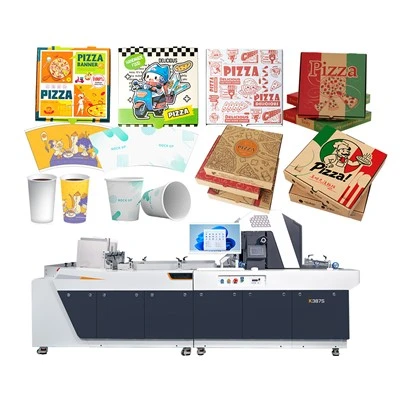
First off, let’s cut to the chase: Single Pass printing is different from old-style flexo or even digital printers that pass the carton back and forth. That means file requirements aren’t exactly the same as what you use for a desktop inkjet. But we built our machine to handle way more formats than you’d expect, because we get that no two carton shops run the same way. Let’s start with the big ones people ask about most.
First up, PDFs. Everyone uses PDFs, right? But not all PDFs are equal. A lot of folks save a PDF from Photoshop and think that’s it, but wait—we don’t just take any PDF. We specifically handle PDF/X-1a and PDF/X-4, because those are the standard for print. Why? Because they embed all the fonts, images, color profiles—stuff that gets lost when you save a regular PDF. I’ve had customers send me a PDF with text that turned to blurry garbage when it printed, and it was because they didn’t save it as an X-standard. Our printer’s software scans PDFs right when you upload ‘em, flags if fonts are missing, or if an image is too low-res (more on that in a sec), so you fix it before you hit print. No more wasting a whole run of blank cartons ‘cause your file was messed up.
Next, what about AI and EPS? Those are for vector art, right—logos, big text, stuff you don’t want pixelated. A lot of carton designers use Adobe Illustrator, so they want to send AI files directly. We’ve got that covered. Our Single Pass system imports AI CS6 and newer, no need to convert to PDF first. Same with EPS—though we do suggest saving EPS with a preview, because some old EPS files have hidden layers that cause weird gaps in the print. I remember a customer a few months back sent an EPS for a cereal box carton, and the logo had a tiny gap that only showed up when the machine processed it. Turned out it was a hidden guide layer in Illustrator that was embedded in the EPS. Our software alerts you to layers like that now, so that problem’s gone.
Now, what about raster formats? Like JPG, PNG, TIFF? Let’s be real, sometimes you’ve got product photos for the carton, or quick designs from Canva, so you need to use these. We handle TIFF best, honestly—because TIFFs are lossless, so no compression artifacts. JPGs work too, but we tell folks to keep the quality setting at 100 if they can, otherwise you get that blurry halo around edges that looks cheap. PNGs work for transparent elements, like a product icon that doesn’t have a background, but we ask you make sure the transparency is saved properly, not just a white background that looks like transparency. And we’ve got a maximum resolution limit, obviously—for our 1200 dpi print heads, you don’t need a 600 DPI product photo for a carton that’s 12 inches wide. Our software will scale images correctly, so you don’t have to overwork yourself. I’ve had people send 300 DPI photos and it’s totally fine, no need to send a 1000 DPI file. That’s overkill and just makes the file take longer to upload, and we don’t need it.
Wait, what about color? That’s a huge one for cartons—you don’t want the blue on your carton to be way darker than what you saw on your screen. Our Single Pass printer uses CMYK, but we also handle Pantone spot colors, which is a big deal for brands that have exact color specs. So if you’re printing a carton for a soda brand that has a specific red Pantone 185, you can tag that color in your file, and our software converts it to the closest CMYK that our printer can hit, no guesswork. We also let you adjust color profiles right in the software, so if your file is in Adobe RGB (which a lot of designers use for screen work), it converts it automatically to CMYK for print. No more color mismatches between your laptop and the final carton.
Now, let’s talk about file prep. This is where most people mess up, and it’s not the printer’s fault. First, bleed and crop marks. For a carton, you need bleed—extra space around the design so when you cut and fold the carton, you don’t get a white edge. We require 3mm of bleed on all sides, and our software checks that automatically. If you don’t have bleed, it’ll flag it. Same with crop marks—though honestly, a lot of our customers use external cutting tools that read the file’s trim data, so our machine can even export the cut path right with the print file if you want. That’s a big time-saver.
Layers? Don’t overcomplicate layers. A lot of designers use 20 layers in Illustrator, and when they send it to print, the printer mixes them up. Our system handles layers, but we suggest keeping it simple—separate layers for background, text, graphics, so if you need to tweak something later, you don’t have to redo the whole file. We also support flattening transparent elements, but only if you want—if you keep transparency, it works, no problem. I had a customer once who used multiple transparent gradient layers for a cosmetic carton, and the old printer he had couldn’t handle that, but ours printed it perfectly without any banding.
What about older file types, like CorelDraw? We know some shops still use Corel, and we don’t make you switch. Our software supports CorelDRAW files up to X7, so if you’ve been using that for years, you can keep using it. No need to convert everything to Illustrator or PDF, which is a huge win for folks who have a workflow that works for them.
Wait, what about variable data? That’s a big one these days—cartons with batch numbers, QR codes, personalized offers, stuff like that. Our Single Pass printer crushes variable data, and it handles file formats for that too. You can send a CSV file with the variable info, link it to your base design in any of the formats we mentioned, and the printer will print each carton with unique data automatically. No more doing that by hand, no more missing numbers because you mixed up files. We’ve had food packaging customers use this for expiration dates, e-commerce brands for discount codes, and it’s run flawlessly.
Let’s talk about common mistakes we see, because that’s what this is all about. First, low-res images. A lot of people think “more DPI = better,” but 150 DPI for a carton is fine, and anything over 300 is overkill. If you send a 72 DPI image, our software will flag it, but sometimes people ignore that, and the print comes out blurry. We can’t fix that, because the file just doesn’t have enough detail. Second, embedded fonts. If you send a PDF with a font that’s not standard (like a fancy script for a boutique brand), and you don’t embed it, the text turns into a default font, which looks awful. Our software tells you if fonts are missing, so you fix that before printing. Third, wrong color mode. Sending an RGB file to a CMYK printer? That’s why the color is off. Our system converts it, but it’s better to send CMYK if you can, to get the exact color you want.
And here’s the thing: we built our printer to be flexible, but we also know that every customer’s workflow is different. If you have a file format that you use all the time and we don’t mention, just ask. We’ve added support for some lesser-known design files because a customer needed it, because we don’t want to be the reason you can’t print the cartons you need. No hoops to jump through, no “our printer only works with this one weird format you don’t use.”
If you’re looking to upgrade from your old printer, and you’re worried about file compatibility, don’t be. We do test runs for free—you can send us whatever file you’ve been struggling with, we’ll run a sample print on our Single Pass Carton Printer, and show you how it works. No pressure, just real feedback. We get that investing in new printing equipment is a big deal, and we want to make sure it fits your needs, not ours.
At the end of the day, file formats for Single Pass carton printing don’t have to be a headache. Our machine is designed to play nice with almost every design tool and file type you’re already using, so you can focus on making great cartons, not fixing files. If you’re ready to stop wasting time on file issues and start running smooth, fast carton runs, reach out to our team to chat about how our Single Pass Carton Printer can work for your shop. We can walk you through the file setup, answer any questions you have, and get you set up with a sample run to see for yourself.
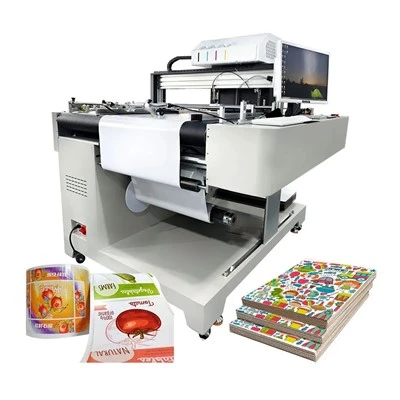
When you’re dealing with carton printing, the printer shouldn’t be the thing holding you back. We built ours to handle your files, so you can handle your business.
Water-based Digital Inkjet Printer References:
- Print and Prepress Standards Association. (2022). Common File Format Requirements for Digital Carton Printing.
- Adobe Inc. (2023). Illustrator File Compatibility for Single-Pass Digital Printing Workflows.
- International Organization for Standardization. (2021). ISO 15930:2021 – Graphic technology – Prepress digital data exchange using PDF/X.
- Printware Solutions. (2023). Variable Data Printing Best Practices for Packaging and Carton Applications.
Chengdu Kelier Electronic Co., Ltd.
As one of the most professional single pass carton printer manufacturers and suppliers in China, our products have good reputation in the market. Please feel free to buy advanced single pass carton printer made in China here from our factory. We also accept customized orders.
Address: Unit 1302, 13th Floor, Building 1, Unit 2, No. 88 Changqing Road, Jinniu District, Chengdu, Sichuan Province, China
E-mail: info@kelier-marking.com
WebSite: https://www.kelier-printer.com/
